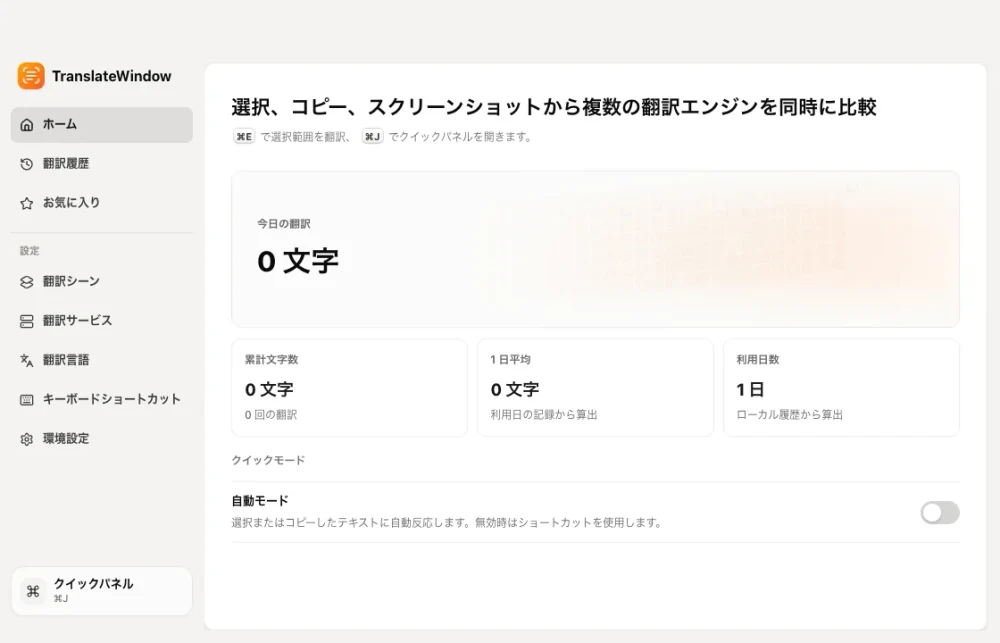
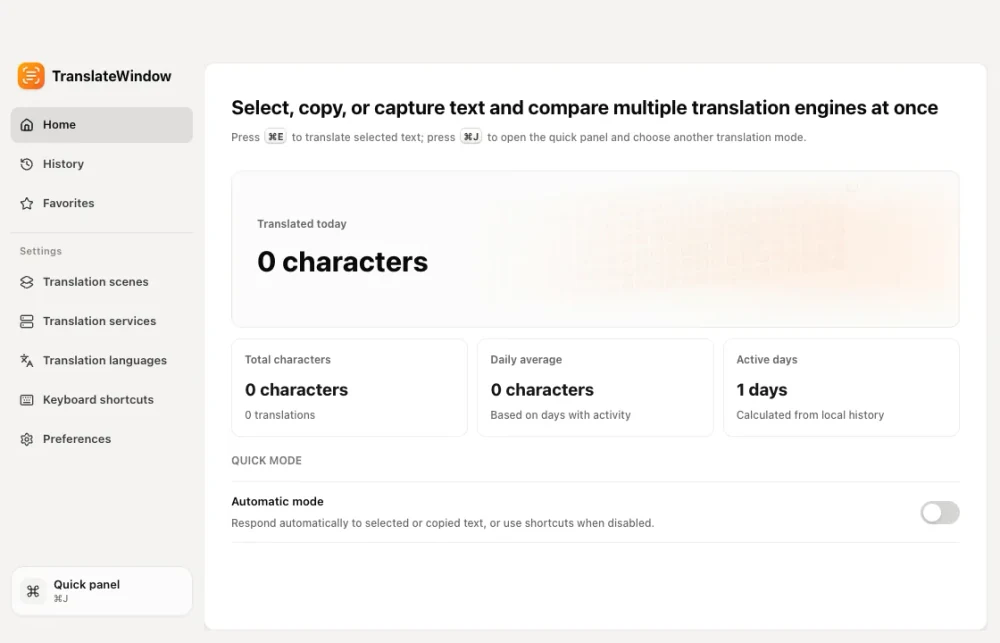
Floating translation
This is the mode you will use most often. Select text, or copy it to the clipboard, then press the shortcut. The translation appears beside the content you are viewing.
Just press Command+E and read the translation.
Select text or copy it to the clipboard, then press the shortcut. The translation appears beside the original. For images, videos, or text you type yourself, choose the mode that fits.
If I want to know what a sentence means, I press the shortcut and see it right away. I don’t have to switch apps, so I don’t lose my train of thought.
This is the mode you will use most often. Select text, or copy it to the clipboard, then press the shortcut. The translation appears beside the content you are viewing.
Capture an image or part of the screen to recognize and translate its text while keeping the original positions and layout where possible. Copy the translated image to the clipboard or export it when you are done.
Pin a screen region and keep recognizing and updating the translation as the picture changes. It works well for video subtitles, online classes, live streams, and software demos.
Type or paste text to translate messages and emails before you send them.
When you are reading a page, document, or email, TranslateWindow keeps the result beside the original text. One answer is usually enough. Open comparison when a sentence or tone still feels uncertain.

Simple can be harder than complex. You have to work hard to clear your thinking and make it simple.
 DeepSeekOnline
Everything you see on screen can be translated.
Arrow keys to move · Hold Shift for the original
Select a passage, understand it, and keep reading.
Understand the tone and meaning before deciding how to reply.
Set a formal tone and preferred terms when translating emails.
Select the passage you need in a document or PDF and translate it.
Can’t select the text in an image? Take a screenshot to translate it.
Pin a region and keep translating as the content changes.
Selection, screenshot, clipboard, input, and live window translation all start from the command panel.
A local model can process sensitive text without sending it away from your Mac.
You can also connect the cloud model service you choose.
Choose the tone, preferred translations, and polishing instructions.
Open selection, screenshot, input, or live-window translation from here.
Use a local model for everyday reading, then switch to an online service for harder or specialized text. The result stays in the same window beside what you are reading.
Learn about privacyOnce the model is downloaded, translation runs on your Mac. Work documents, private conversations, and unreleased material do not need to be sent to an online translation service.
Google and DeepSeek translation services are built in. You can also add your own API key to use more models.
Read a focused guide, or compare TranslateWindow with another Mac translator before downloading.
Keep translating one part of the screen as visible text changes.
Read moreTranslate images and text that cannot be selected with OCR.
Read moreKeep sensitive text on your Mac with a downloaded local model.
Read moreCompare the interface, result window, translation modes, and model options.
Read moreCheck what carries over and what to test before changing apps.
Read moreAvailable for macOS. Windows is coming soon. Pro includes full access to the local model and more translation scenes. The checkout page shows the current price.
TranslateWindow currently supports macOS 15 and later. Windows is coming soon. Screenshot OCR, selection translation, and live-window features require the corresponding macOS permissions.
With the local model, content stays on your Mac. With a cloud service or your own API key, text is sent to the service you choose. TranslateWindow does not use source text, translations, or screenshots for analytics.
Yes. Pro includes a 7-day no-questions-asked refund window. If it is not a fit, contact us within 7 days.